You don’t download Etulio from an app store: it opens in your browser.
It takes a few minutes. Keep your phone and your child’s phone at hand. The pictures are the real screens you will see.
-
Create your parent account
On etulio.com, tap “Try 1 month free”. Enter your family name, your email and a password, then tap “Create my account”.
Then open the email from Etulio and tap the link: your address is confirmed, and you can add your child.
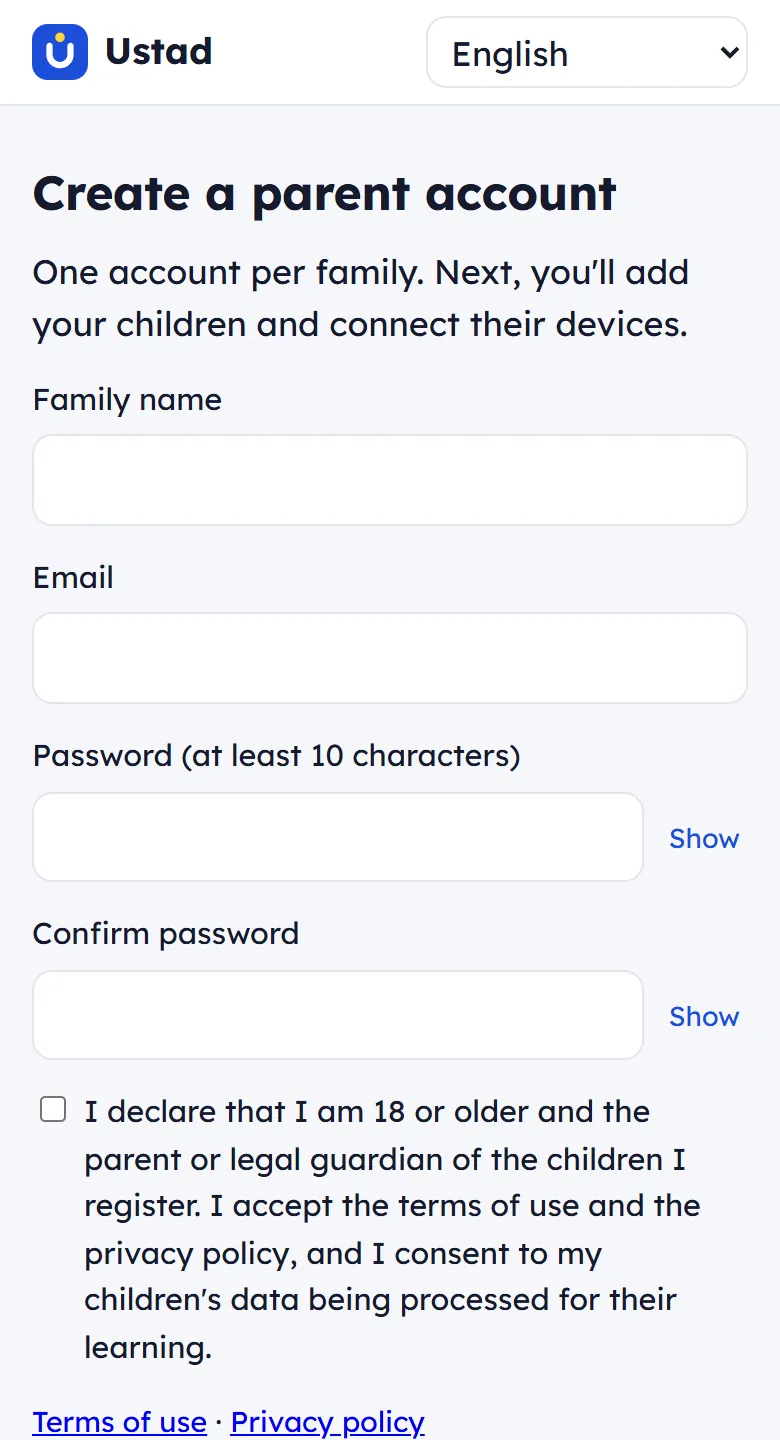
The sign-up screen. -
Add your child
Tap “Add a child”: first name, school grade and lesson language. Your child doesn’t need an email address.
Did you get a code (in a shop, from the school, from a friend)? Enter it under “Have a code?”.
-
Connect your child’s phone
In your space, tap “View details” for your child, then “Login and devices” and “Show a login code”. A 6-digit code and a QR code appear; they stay valid for 10 minutes.
On your child’s phone, open etulio.com/cocuk and tap “Log in with a code” (“Kodla bağlan” on a phone set to Turkish). Type the 6 digits, or scan the QR code with the camera. Nothing else to type.
Your child has no phone? “Open their space on this device” opens it on your phone or on a tablet.
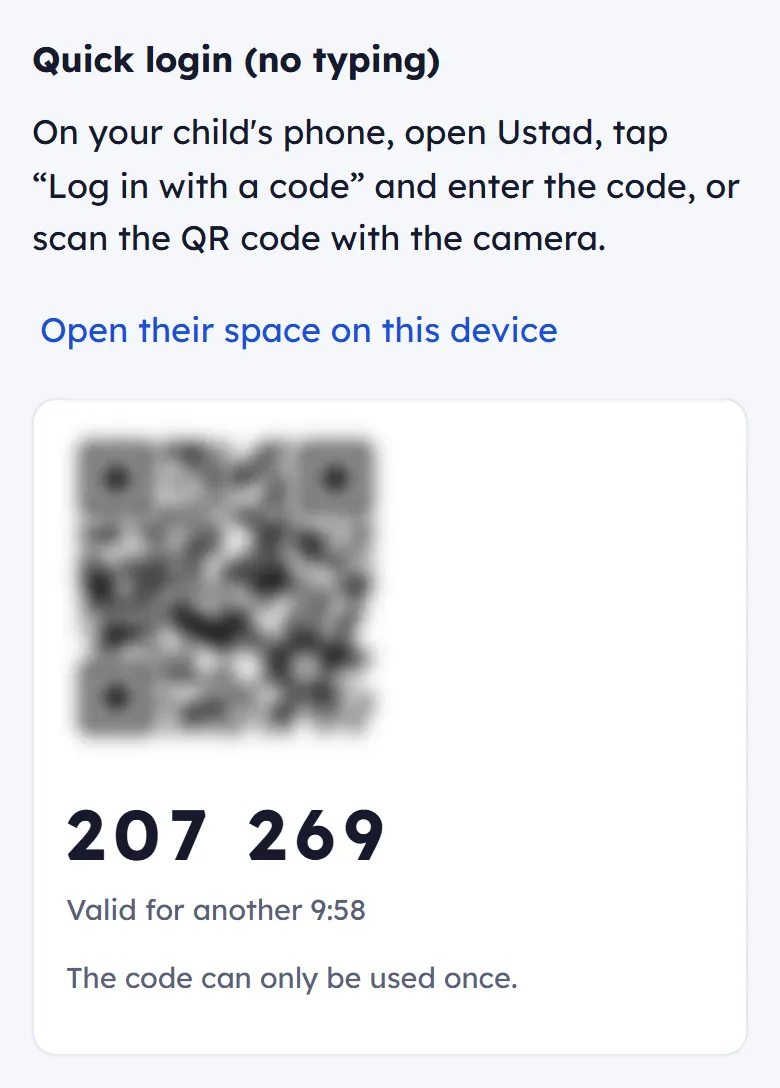
Your screen: the code to give (the QR code is blurred here). 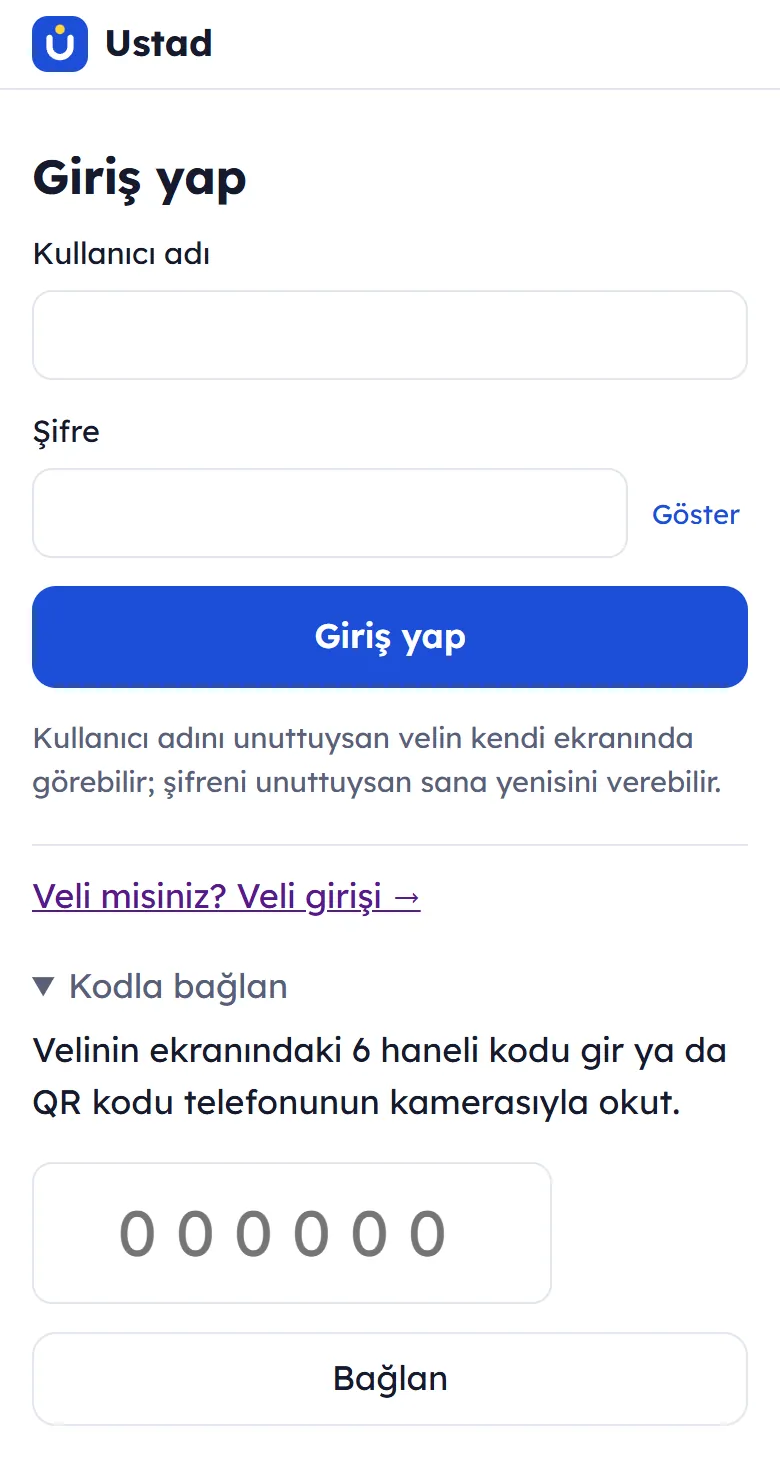
Your child’s screen, in Turkish. -
Put the icon on the home screen
Etulio offers it itself: tap “Add the icon” (on your child’s phone, in Turkish: “Simgeyi ekle”). From then on it opens with one tap, like an app. Do it on your phone (Etulio Veli) and on your child’s phone (Etulio).
Android, with Chrome
If the button doesn’t show: the ⋮ menu at the top right, then “Add to Home screen” or “Install app”.
iPhone or iPad, with Safari
The Share button (the square with an arrow pointing up), then “Add to Home Screen”.
What happens next?
On the first day, your child takes a short level test, with no grade. After that, a short set every day. Every Sunday you get the week’s summary by email, in your language.